Pagebox guide / how to share an html file privately
How to share an HTML file privately
Publish a real HTML launch brief at one stable Pagebox URL, give access to a named reviewer, and confirm that a blocked viewer cannot get in.
Quick answer
This example starts with a self-contained Q3 launch brief, publishes it, grants access to sam@acme.com, and tests the same link as rival@other.com. Sam can open the page after signing in. The second account cannot.
Meet the example: a Q3 launch brief
We will follow one page from start to finish: a Q3 launch brief prepared for a product review. It has a title, a short introduction, three highlights, and the next milestone. The brief is meant for Sam at Acme, so an anonymous public URL would reach a wider audience than intended.
The brief is a working static site. Every style is embedded in index.html, which makes this example a single-file upload. A larger page can keep images, stylesheets, and scripts in neighboring folders. Keep that directory structure intact so every relative file reference still works after upload.
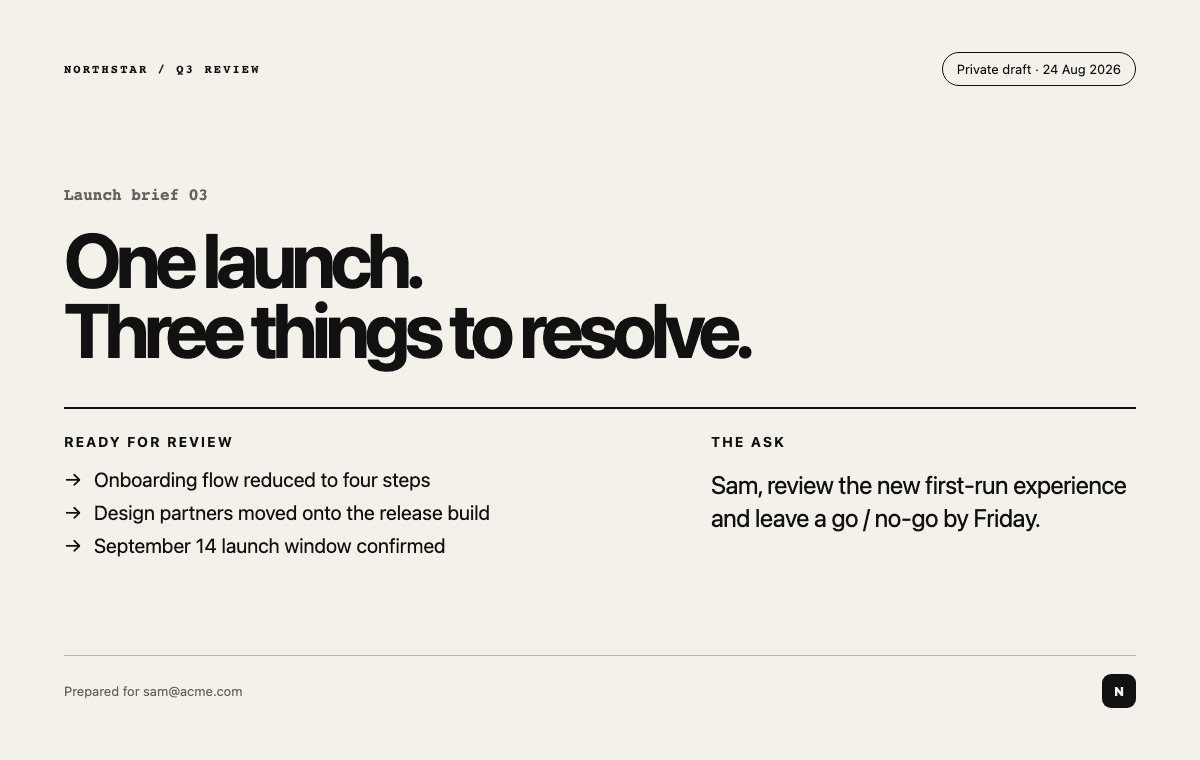
- Example page: Q3 launch brief
- Intended reviewer: sam@acme.com
- Outside test account: rival@other.com
Package the complete page
Open index.html locally before you upload it. The type, spacing, and content should render without a development server, and the browser console should show no missing files. Fix any problem here first. Publishing a broken folder will leave it broken.
Selecting one HTML file is enough for this example because it contains all of its own styles. If your page imports images, CSS, JavaScript, fonts, or media, put index.html and those assets in one folder and upload the folder or a zip archive. Preserve the relative directory structure. MDN's file guide explains how the browser resolves the relationship between an HTML document and its neighboring files.
- Open the entry page directly in a browser.
- Check images, fonts, scripts, and navigation before packaging.
- Upload one HTML file only when it genuinely contains everything it needs.
Share it with one named reviewer
Publish the Q3 brief, open its sharing controls, and choose Specific people. Add sam@acme.com, then save the audience. Pagebox keeps the page files separate from the access policy, so you can change who may open the page without rebuilding the HTML.
A difficult-to-guess URL helps with casual discovery, but it does not decide who is allowed in. OWASP recommends checking authorization on every protected object and denying access when no rule grants it. In Pagebox, the audience setting makes that decision when someone opens the link.
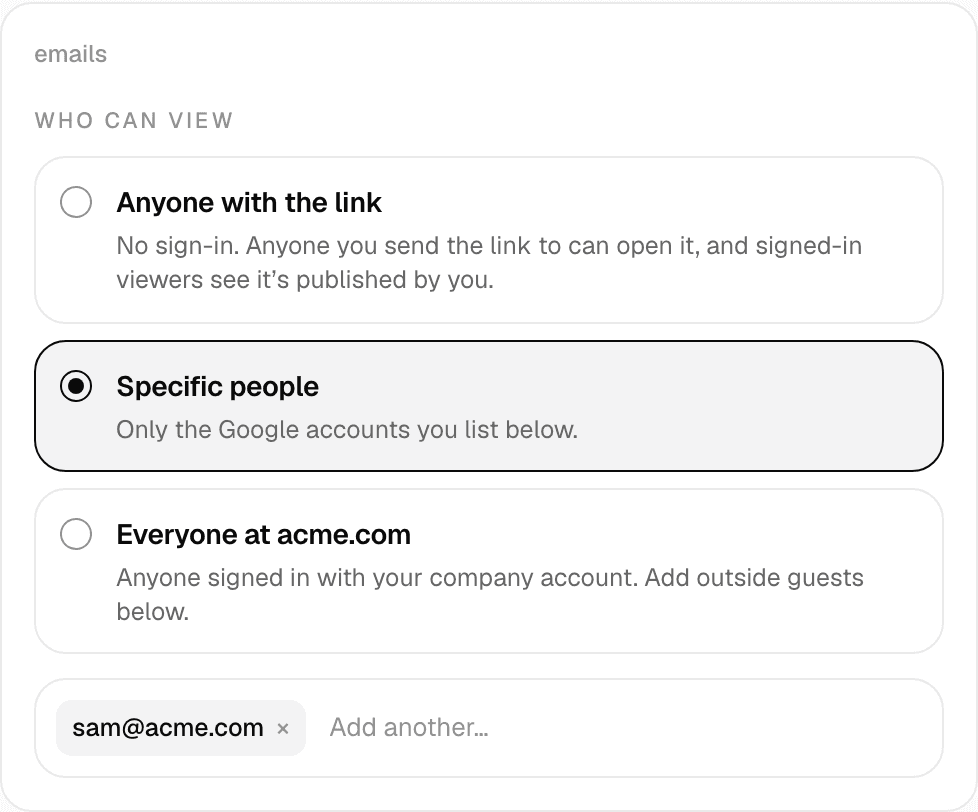
- Choose Specific people.
- Add sam@acme.com as the only reviewer.
- Save the audience before copying the link.
Test the exact link from outside the audience
Copy the final sharing link and open it in a private browser window. Sign in as Sam first and confirm that the Q3 brief opens. Then use rival@other.com, an account that is absent from the audience. The second account should reach the access screen without receiving the page. You need both results before you send the link.
If the outside account can see the brief, return to the audience settings. If Sam cannot open it, check the email spelling and the account used to sign in. Running this test yourself catches audience mistakes while you can still fix them.
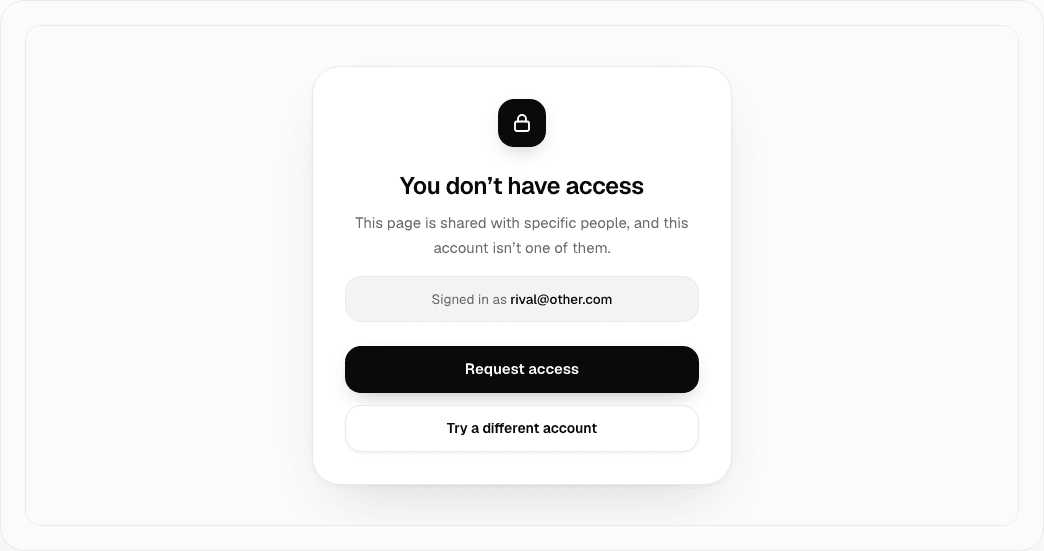
- Allowed path: sam@acme.com reaches the Q3 brief.
- Denied path: rival@other.com stops at the access boundary.
- Repeat the test after every material audience change.
Replace the page without changing the link
When the Q3 numbers change after Sam comments, update index.html, open it locally again, and replace the files behind the existing Pagebox page. The original link stays in email, chat, and meeting notes while the current brief changes behind it.
A stable link keeps nearly identical attachments from circulating and leaves the audience attached to the page. Retest the allowed and blocked accounts after a meaningful replacement, especially if the new version adds scripts, images, or navigation.
- Edit and verify the source file locally.
- Replace the published files instead of creating a second link.
- Retest the page and its audience after replacement.
Apply the worked-example checklist
You now know four things about the Q3 brief: it renders locally, its audience names one reviewer, Sam can open it, and the outside account cannot. An upload-success message only confirms that the files arrived. These checks cover the page and its audience.
Use the same sequence for a proposal, prototype, report, or AI-generated page. Decide on the audience before publishing, preserve the file tree, choose the narrowest useful access rule, and open the final link outside the owner's session. Keep editing the source files, then replace the published version when they change.
- The complete page renders before upload.
- The intended audience is written down.
- One allowed identity reaches the page.
- One outside identity is denied.
- The stable link still works after a replacement.
Have a page ready?
Drop the files. Share one link.